


Adobe Scan AI PDF Scanner, OCR
4.661.06K Reviews
App Specs
- Version
- Varies with Device
- Updated On
- License
- Free
- Downloads
- 100,000,000+
- Developer
- Adobe
- Categories
- Business
- Platform
- Android, iOS
Screenshots
 Analysis by AppCompare
When a paper form arrives just as I’m heading out, I don’t want to hunt for a flatbed scanner or postpone dealing with it. I want a readable copy I can save, find, and pass along from my phone. That is the everyday problem Adobe Scan AI PDF Scanner, OCR is built to handle, and it works best when I treat it as a practical document workflow rather than a replacement for every kind of scanner.
A useful fit for quick paperwork
Adobe Scan is a free business app from Adobe, with optional in-app purchases ranging from $3.99 to $69.99 per item. It is rated for Everyone, has a 4.7 average from around 3 million ratings, and has passed 100 million installs. Those figures suggest it has become a familiar option, but the more useful question is whether its phone-first approach fits the way you handle paper.
I’d recommend it to students saving handouts, freelancers collecting receipts, and anyone who occasionally needs to turn a signed page into a shareable file. It is especially convenient when the original paper is already in front of you and you need a digital copy before it gets lost in a bag or mixed into a pile. If you scan boxes of records every week, though, a dedicated scanner with a document feeder is likely a better fit: it can move through large batches without requiring you to photograph each page by hand.
Guides and Analysis on Adobe Scan AI PDF Scanner, OCR
From loose page to a usable scan
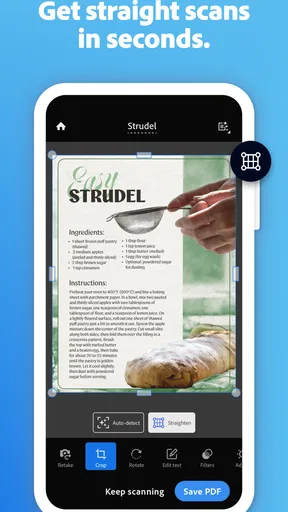
My preferred routine is simple: place the paper on a contrasting, uncluttered surface, hold the phone above it, and give the camera a moment to detect the page before capturing. Edge detection and automatic straightening can save fiddly adjustments, but they cannot rescue every poor setup. A curled receipt, a glossy page reflecting a lamp, or a document placed against a similar-colored background may need another attempt. Better light and a steady hand usually matter more than tapping through edits afterward.
For several related pages, I keep the camera moving through the set and combine the captures into one PDF rather than creating a separate file for every sheet. That small choice makes handoff easier: a recipient can open one document and move through the pages in order. I still pause to check the page sequence before sharing, especially if I have scanned items from different folders or captured a page twice. Automatic capture is convenient, but a quick review catches mistakes that are easy to miss in the camera view.
What OCR changes after capture
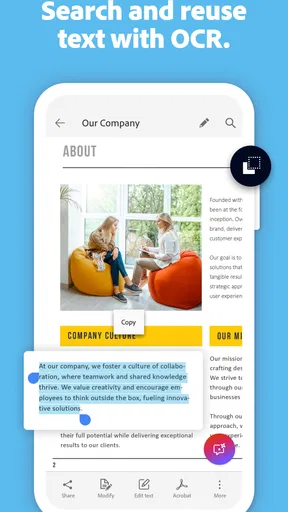
Text recognition makes a scan more useful than a photo when I need to locate a name, copy a passage, or search a document later. For example, after scanning a printed course handout, I can look for a specific term instead of scrolling through every page. That is a meaningful advantage over simply taking pictures with the camera app, where the page may be visible but its printed words are not as convenient to work with.
I would still treat OCR as a shortcut, not a guarantee. Clear, straight, well-lit print gives it the best chance; small type, marks over text, unusual layouts, and faded originals are more likely to need a human check. If a copied line will go into a contract, application, or report, I compare it with the paper before relying on it. The scan remains useful even when recognition needs correction, but the extra verification is part of responsible document handling.
Worth Reading Before You Choose

Google Calendar Makes a Crowded Week Easier to Manage

Ludo King Makes the Most of the Minutes Between Plans

Baby Panda World Brings Quick Play to Modern Phones, but Its Game Library Feels Busy

ESPN’s Live Game View Makes Following Close Games Easier

QuizzLand Review: A Good Fit for Short Trivia Breaks, Not Every Player

Basketball Stars: Multiplayer Is Fast, but Can It Recover When Matches Go Wrong?
Editing, saving, and passing it on
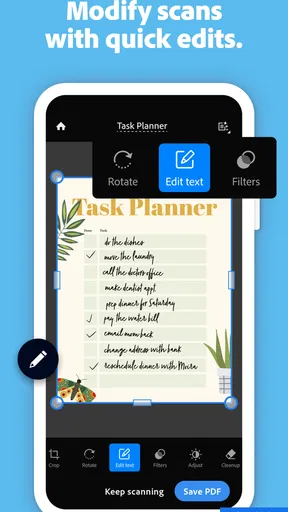
Before I send a file, I use the available page tools to crop, rotate, reorder, or improve the image. This is where a short quality check pays off: trim away a desk edge without cutting off a signature, rotate pages so they read consistently, and make sure a faded line has not become harder to see after enhancement. I try to keep the original paper until the recipient confirms the digital copy is acceptable, particularly for official paperwork.
For a normal handoff, emailing the PDF or placing it in a cloud service such as Google Drive or Dropbox is more useful than sending a series of image attachments. The person receiving it gets a document they can open and review as a unit. If you already work in Adobe’s ecosystem, the account and document-storage workflow may feel natural; if your team uses another service, check that the destination you need fits your routine before making this your default scanner.
Security deserves a little care of its own. The published description of cloud storage and password protection should not encourage me to treat every scan as safe by default. I choose a suitable destination, use password protection when it makes sense, and avoid sending sensitive pages to an unintended recipient. A scan is still a copy of the original information, so ordinary care with account access and sharing matters just as much as the capture itself.
Where the workflow helps—and where it doesn’t
I find this workflow most useful when a paper has to move between people, not merely become a file: checking legibility, page order, and the destination before sending can prevent a second round of messages. The trade-off is that a phone scan still depends on careful capture and review, so it is less convenient for bulk or tightly controlled office work. That distinction helps clarify who will benefit most from keeping this tool close.
A realistic handoff from paper to PDF
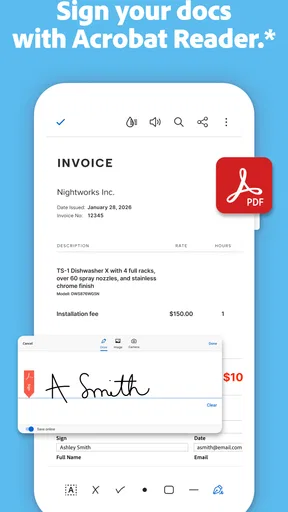
Imagine I receive a signed permission form at the end of a meeting and need to send it to a colleague before the day is over. I can scan the page, check that the signature and date are legible, crop the edges, and send one PDF rather than photographing it and hoping the recipient can read it. If there are several pages, combining them keeps the packet together. The practical benefit is not just digitization; it is reducing the number of little decisions the recipient has to make.
For a student, the same flow can turn a marked-up worksheet into searchable study material. For a small business owner, it can keep a receipt with the records that need attention later. In both cases, a useful habit is to name or file the scan in a way that will still make sense next month. A perfectly captured document is hard to retrieve if it disappears among unrelated files.
Choosing it over the alternatives
Compared with a phone’s ordinary camera, Adobe Scan is more purpose-built for pages: it detects document edges, offers page adjustments, combines captures into PDFs, and recognizes text. A basic notes or camera app may be quicker for a one-off snapshot, especially when search and a polished multi-page file do not matter. For recurring office batches, a desktop scanner is more comfortable and consistent. I see the app as the useful middle ground: always at hand for occasional paperwork, but not a substitute for high-volume scanning equipment.
There is also a workflow trade-off in using a dedicated service rather than saving everything as plain images. A PDF is easier to pass around as a document, while images may be enough for casual reference and can be simpler when you only need a quick visual record. If your organization has strict rules about where documents must be stored, follow those rules first; convenience should not decide the destination for sensitive records.
Small habits that prevent avoidable rework
For receipts, I scan them before the ink fades or the paper gets crumpled, then check the total and date while the original is still nearby. For multipage forms, I keep pages in order and inspect the first and last page before sending; a missing attachment is easier to fix immediately than after someone asks for it. When text recognition matters, I favor a clean, flat page and review copied passages against the source. These habits make the app’s automation more dependable without pretending it is infallible.
Another useful distinction is between a scan meant for reading and one meant as evidence of a document’s condition. Image enhancement can improve legibility, but it may change how the page looks. If preserving the appearance of an original is important, keep an unaltered copy where possible and do not rely on an enhanced version alone. For ordinary notes, readability may be the priority; for a dispute or formal record, fidelity deserves more attention.
Who should look elsewhere
I would skip this as a primary solution if your work involves frequent, high-volume scanning, if you need a hands-free feeder, or if every capture must follow a tightly controlled workplace process. A physical scanner or an organization-approved document system can be a better match. I would also avoid assuming that OCR eliminates proofreading or that a password-protected PDF makes careless sharing harmless. The app speeds up several steps, but judgment still belongs to the person handling the document.
It is also worth deciding whether you want an account-based document workflow before scanning material you need to access across devices. The account route can be helpful when moving between a phone and tablet, while someone who wants only a disposable local snapshot may prefer a simpler camera or notes workflow. I find the app most valuable when I expect to revisit, search, or send the file—not when I merely need a quick picture that I will never use again.
My overall take
First released on May 31, 2017, Adobe Scan has the kind of focused job I appreciate in a phone app: it turns everyday paper into something easier to store and pass along. Its strongest case is the complete path from capture to a checked, multi-page PDF, with text recognition adding value when the source is clear. The friction is real too: lighting, page condition, sequence checks, OCR review, and choosing the right sharing destination still take attention.
In conclusion, Adobe Scan AI PDF Scanner, OCR is a solid choice if you want a pocket scanner for occasional forms, receipts, handouts, and other everyday documents. I would not replace a dedicated office scanner with it, and I would not send a consequential scan without checking it. But for the moment when paper needs to become a readable file quickly, it is a practical tool I’d be comfortable recommending to a friend.
Getting Started with Adobe Scan
First things first, let's talk about getting set up. Downloading the app is a breeze from either the Google Play Store or the Apple App Store. Once you have it installed, you’re greeted with a clean and intuitive interface that’s easy to navigate. I appreciate apps that don’t require a PhD to figure out, and it fits the bill perfectly.
Setting up your account is straightforward, especially if you already have an Adobe ID. If not, creating one is simple and free, allowing you to store and access your scanned documents across devices. This feature is a game-changer for those of us who frequently switch between our phones and tablets.
Scanning Made Easy
The heart of the app is its scanning capability, and let me tell you, it’s impressive. The AI-powered scanner automatically detects the edges of documents, ensuring you get a clean scan every time. You can scan anything from receipts and notes to full-page documents. The app even straightens out your scans if the original document was a bit skewed.
One thing I particularly enjoy is the batch scanning feature. Got a stack of documents? No problem. Just keep snapping away, and the app will compile them into a single PDF. This is super handy when you're digitizing multi-page reports or books.
OCR and Text Recognition
The OCR (Optical Character Recognition) technology in Adobe Scan is where the magic truly happens. The app doesn’t just scan; it also recognizes text, allowing you to edit and search within your documents. Imagine scanning a printed article and being able to search for specific passages or even copy text to another application. It's like having your own personal scribe!
What’s more, the accuracy of the OCR is top-notch. I’ve tried it with various fonts and sizes, and it rarely misses a beat. This feature is incredibly useful for students and professionals who need to work with a lot of text.
Editing and Sharing
Once your document is scanned, the app offers several editing tools. You can reorder pages, crop, rotate, and even enhance the image quality. The enhancement feature is great for bringing clarity to older, faded documents.
Sharing your scanned documents is a snap. You can email them directly from the app, or upload them to cloud services like Google Drive and Dropbox. I find this particularly useful for sharing documents with colleagues or storing them for future reference.
Security and Privacy
In today’s digital age, security is paramount. Thankfully, Adobe Scan takes this seriously. Your documents are stored securely in Adobe Document Cloud, and you can even add password protection to your PDFs for an extra layer of security. It’s reassuring to know that my sensitive documents are well-guarded.
Privacy is also respected, with the app adhering to stringent data protection standards. You can manage your privacy settings with ease, ensuring you have control over how your data is used.
Overall Experience
In conclusion, it is a stellar app that combines ease of use with powerful features. Whether you’re a student, a professional, or just someone who wants to declutter their paperwork, this app is worth checking out. It’s like having a mini scanner in your pocket, ready to tackle any document challenge that comes your way.
So, if you’re ready to embrace the digital age and say goodbye to paper clutter, give it a try. It’s an essential tool for keeping your documents organized, secure, and easily accessible.
Pros
- User-friendly interface for easy navigation.
- High-quality scans with clear text recognition.
- Fast processing speed for quick scanning.
- Integration with Adobe Cloud for storage.
- Supports multiple languages for OCR.
Cons
- Requires Adobe account for full features.
- Limited editing options in free version.
- Large app size may affect storage.
- Occasional crashes on older devices.
- Subscription needed for advanced tools.
FAQs for Adobe Scan AI PDF Scanner, OCR
What are the main features of Adobe Scan AI PDF Scanner?
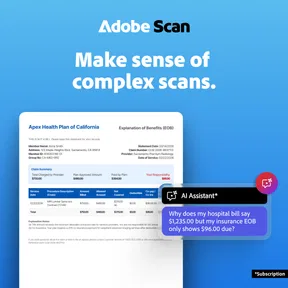
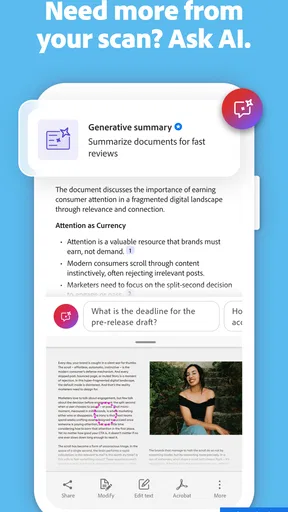
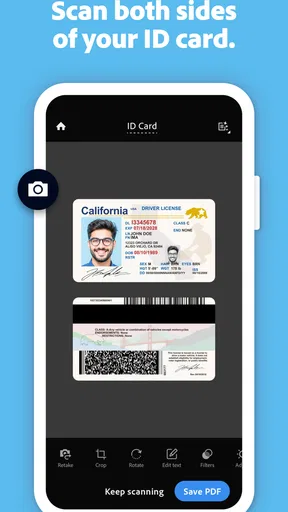
Adobe Scan AI PDF Scanner offers several key features, including the ability to scan documents, receipts, business cards, and whiteboards using your device’s camera. The app utilizes AI to enhance the quality of scans, automatically detect document borders, and perform OCR (Optical Character Recognition) to convert images into editable text.
Is Adobe Scan AI PDF Scanner free to use?
Adobe Scan is available as a free app, allowing users to perform basic scanning functions without charge. However, it offers in-app purchases for advanced features, such as additional storage and enhanced OCR capabilities. Users can subscribe to Adobe Document Cloud for more comprehensive document management options.
How does Adobe Scan ensure the quality of scanned documents?
Adobe Scan utilizes AI technology to automatically enhance the quality of scanned documents. It detects edges, corrects perspective, and optimizes text sharpness. The app also reduces shadows and glare, ensuring that the final scan is clear and legible. Users can manually adjust settings for further refinement.
Can Adobe Scan convert scanned documents into editable text?
Yes, Adobe Scan uses Optical Character Recognition (OCR) to convert scanned documents into editable text. This feature allows users to extract text from images, making it easy to edit, copy, or share the content. The OCR functionality is highly accurate, supporting multiple languages for diverse user needs.
What are the compatibility requirements for Adobe Scan AI PDF Scanner?
Adobe Scan is compatible with both Android and iOS devices. For Android, it requires version 5.0 (Lollipop) or later, and for iOS, version 12.0 or later is needed. The app is designed to work seamlessly on smartphones and tablets, ensuring a smooth user experience across different devices.


